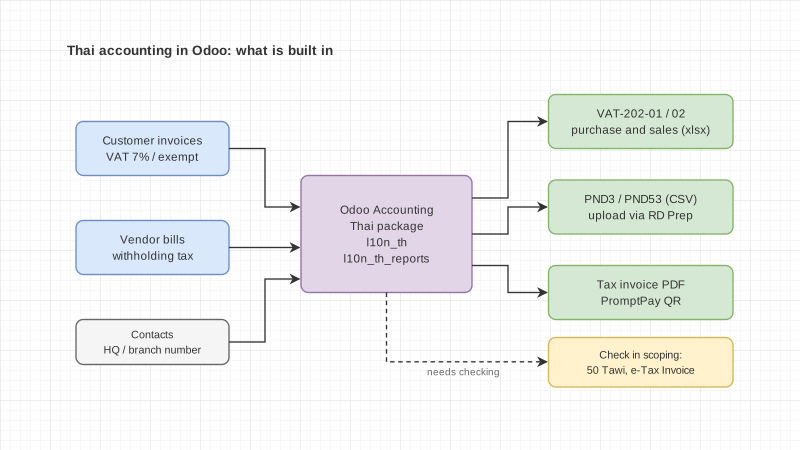
Yes, Odoo can do Thai accounting. It ships a Thai tax package maintained by Odoo itself. In Odoo 19.4 and later, that package covers 7% VAT, withholding tax, a PP30 report and PND3 and PND53 files exported as CSV for the Revenue Department's RD Prep program, the withholding tax certificate (50 Tawi) printed as PDF, tax invoices and PromptPay QR.
Before you read on, check which Odoo version your company runs, because the Thai tax features differ. The Odoo 19.0 documentation does not cover printing 50 Tawi or exporting PP30 for RD Prep. The Odoo 19.4 and Odoo 20 documentation covers both.
If you want the big picture of what Odoo is first, read our guide to Odoo. This article goes deeper on accounting and tax only. It is written for accountants, CFOs and business owners deciding whether Odoo fits their bookkeeping. Every point comes from the Odoo 19.0, 19.4 and 20 documentation and the Revenue Department pages we checked on 11 October 2026.
What the Thai accounting package in Odoo includes
Odoo's Thai localization has two packages: Thailand - Accounting (l10n_th), the main package, and Thailand - Accounting Reports (l10n_th_reports), which adds Thailand-specific reports. The documentation says it comes with a predefined chart of accounts tailored to Thai standards.
The Odoo 19.4 documentation page for Thailand lists the following. The Odoo 20 page reads the same.
- Preset taxes: VAT 7% for goods (VAT recognised on invoicing), VAT 7% S for services (VAT recognised on payment), VAT 0% for zero-rated goods or services, usually exports, VAT-exempted, and Withholding taxes.
- An income tax type under section 40, set on purchase taxes that have Withhold On Payment enabled. The documentation says this is needed to generate 50 Tawi certificates and the PND3 and PND53 reports.
- A PP30 VAT report (P.P.30 - VAT Report) that exports as CSV for RD Prep.
- Sales and purchase tax reports as xlsx files. The documentation describes them as records VAT-registered businesses must keep and show the Revenue Department during audits.
- A P.N.D. 3 & 53 - WHT Report (TH) listing withholding tax on vendor bills, split into PND3 (individuals) and PND53 (companies), exported as Tax Report PND 3.csv and Tax Report PND 53.csv for RD Prep.
- The withholding tax certificate (50 Tawi) as a PDF, printed from a vendor payment that has tax withheld.
- Tax invoice PDFs printed with the Print button on the invoice. Invoices can also be printed as a Commercial Invoice from the gear menu.
- A Branch Code field next to the Tax ID in the Contacts app. For a branch, enter the branch number. For a head office, leave it blank. Only companies set in Thailand have this field.
- PromptPay QR codes on invoices, generated from the invoice amount plus one piece of merchant information: Ewallet ID, Merchant Tax ID or mobile number.
The documentation gives examples of services that fall under PND3 and PND53 withholding, such as rental, hiring, transportation, insurance, management fees and consulting.
How Odoo 19.0 differs from 19.4
If your company still runs Odoo 19.0, the documentation for that version reads differently. These are the differences that matter for accounting work.
- The 19.0 page has a warning that Odoo cannot generate the PND report, a PDF or the withholding tax certificate directly, and that the CSV files must go through an external tool. The 19.4 page drops that warning and adds the Print 50 Tawi button.
- The 19.0 page offers the purchase and sales tax reports as VAT-202-01 and VAT-202-02 xlsx files and does not mention a PP30 export for RD Prep.
- In 19.0, the branch number goes in the Company ID field on the Sales & Purchase tab. In 19.4, it goes in the Branch Code field next to the Tax ID.
- The 19.0 page lists four preset taxes: VAT 7%, VAT-exempted, Withholding tax and Withholding income tax. VAT 7% S and VAT 0% are not listed.
What still happens outside Odoo
Odoo does not file returns for you. The 19.4 documentation says the PP30 and PND3/53 data exports as CSV files for RD Prep, the Revenue Department's program for formatting tax data for e-Filing. It does not describe producing the final PND or PP30 form inside Odoo. In practice you still open the files in RD Prep and file through e-Filing.
On e-Tax Invoice, the Odoo Thailand page says nothing at all, in 19.0, 19.4 or 20. We will not guess either way. If your company already uses e-Tax Invoice, or plans to, raise it during scoping and ask whoever implements the system to show it working before you sign.
For 50 Tawi on 19.4 or later, print a few certificates from real payments during system testing and have your accountant compare them with the form you use today. On 19.0, decide early which tool will issue them.
Can you keep your existing chart of accounts in Odoo?
Yes. Odoo installs the country's standard chart of accounts when you create the database, and the documentation recommends renaming and recoding those standard accounts to match your own chart rather than deleting them.
Here is what the Odoo documentation says about the chart of accounts.
- The country you pick when creating the database decides which fiscal localization package is installed. That package comes with a standard chart of accounts configured for the country's regulations. You can use it as is or adapt it.
- You cannot change the fiscal localization once a journal entry has been posted.
- Every account needs a code, a name and a type. The type drives country-specific legal reports, fiscal year closing rules and opening entries, so it has to be right.
- An account with transactions cannot be deleted. Tick Deprecated to stop using it.
- Account codes must be unique within the chart, and Odoo groups accounts by code automatically.
Say you have used an accounting program such as Express for years and want to move to Odoo. The approach in the Odoo documentation is to split your existing accounts into two groups. The first group has an equivalent standard account in Odoo: edit that account's name or code to match yours. The second group has no equivalent: create those accounts manually or import them.
The documentation also warns that some standard accounts are set as defaults on products, product categories, contacts and accounting settings. Deleting them or changing their type can break basic tasks such as creating an invoice. Rename and recode them instead.
Our advice as implementers: build a mapping table from your old chart to the Odoo chart and have your accountant sign it off before you import opening balances. The Odoo documentation itself recommends practising in a test database and running in parallel with your previous system for a while. If you are still weighing the two systems, see Odoo vs Express.
What month-end looks like for an accountant in Odoo
Month-end in Odoo runs through a few menus: bank reconciliation, the tax reports under Accounting > Reporting > Tax Report, printing 50 Tawi, and the tax lock date. The steps below follow the menus in the Odoo 19.4 documentation. On 19.0, some buttons and report names differ.
- Check that vendor bills with withholding tax use the right tax, and that purchase taxes with Withhold On Payment have an Income Tax Type set, because the PND reports and 50 Tawi depend on it. Check that branch contacts have a Branch Code.
- Reconcile the bank from the Accounting Dashboard: click the bank journal or its button showing transactions to reconcile, then match each line with invoices, bills or payments.
- Go to Accounting > Reporting > Tax Report, click Report and select P.P.30 - VAT Report. Filter the period, click the gear icon and select Export for RD Prep (CSV).
- Filter the month, click the gear icon and select Sales Tax Report (xlsx) and Purchase Tax Report (xlsx) to keep the sales and purchase tax reports.
- Back in Tax Report, select P.N.D. 3 & 53 - WHT Report (TH), filter the month, click the gear icon and select PND3 - Export for RD Prep (CSV) or PND 53 - Export for RD Prep (CSV).
- Print 50 Tawi from Accounting > Vendors > Payments: select the payment with tax withheld and click Print 50 Tawi to get a PDF for the payee.
- Open the CSV files in RD Prep to prepare the data, then file through e-Filing.
- Set the Lock Tax Return date under Accounting > Accounting > Lock Dates so no one can change VAT-related entries in a closed period. The documentation says new entries dated before the lock date have their tax values moved to the next open period.
The documentation also warns that different contacts sharing the same VAT ID may produce an incorrect VAT report, and suggests linking them as parent and child contacts. This comes up often with customers that have several branches.
Where the Revenue Department comes in
The PP30 and PND files from Odoo are meant for RD Prep, the Revenue Department's program for preparing return data before filing through e-Filing.
The Revenue Department's RD Prep manual, version 1.0, says the program supports withholding tax forms PND1, 2, 3 and 53, plus PP30 and several other forms. It supports both manual entry and data transfer from files. It runs on Windows and is downloaded from the Revenue Department website under the services menu, in the filing section, on the tab for preparing data through the program.
On deadlines, Revenue Department notices cite the legal filing dates: PND3 and PND53 within 7 days from the end of the month in which payment was made, and PP30 by the 15th of the following month. For online filing, the Ministry of Finance has granted an extra 8 days through notices that each cover a set period. The notices we could open on the Revenue Department website cover earlier periods, so we do not state this year's dates. Check the latest notice on rd.go.th before you set your closing calendar.
When Odoo fits and when a Thai accounting program is enough
If your main need is issuing documents and filing tax, a Thai accounting program such as FlowAccount or PEAK is often enough and quicker to start. Odoo fits when accounting has to connect with sales, stock, purchasing or manufacturing on one set of data.
Odoo is worth a look when:
- Sales, stock and accounting figures live in separate programs and you reconcile them by hand every month.
- The company has warehouse or production work that affects cost of goods sold.
- You want a sales order to become an invoice and a journal entry without retyping.
A Thai accounting program is probably enough when:
- The business is services or simple trading.
- An outside accounting firm keeps the books and already knows that program.
- e-Tax Invoice must come out of the same system as your accounting from day one.
For side-by-side detail, see Odoo vs FlowAccount and Odoo vs PEAK. To understand how ERP differs from accounting software first, read What is ERP. For budget, read How much Odoo costs, which also covers which edition includes full accounting.
Checklist for accountants before choosing Odoo
Before you decide, have the accountant in charge answer these questions.
- Which returns does the company file every month, which ones does Odoo produce a file for, and which ones are done outside the system?
- Which Odoo version will you run? On 19.4 or later, have you printed 50 Tawi from real payments yet, who issues them, and how do they reach payees?
- Does the company use, or need, e-Tax Invoice? If so, has it been tested with the implementer?
- How many accounts are in the current chart, which ones map to Odoo's standard accounts, and which need to be created?
- Do branch contacts have complete branch numbers, and do any contacts share a tax ID?
- When will opening balances and open invoices and bills be imported, and who reconciles them against the old trial balance?
- How many periods will you run in parallel with the old system, and who compares the numbers?
- Does your outside accounting firm need access? If it does, Odoo's pricing page counts a third-party accountant as a paying user.
Frequently asked questions
Does Odoo have a Thai chart of accounts?
Yes. The Thai package installs a standard chart of accounts when Thailand is selected for the database. You can use it as is or rename and recode accounts to match your existing chart.
Can Odoo issue the 50 Tawi certificate?
Yes, in Odoo 19.4 and later, including Odoo 20. Go to Accounting > Vendors > Payments, select the payment with tax withheld and click Print 50 Tawi to get a PDF. The Odoo 19.0 documentation still says it cannot generate the certificate directly, so on 19.0 you need an external tool.
Does Odoo file PND53 automatically?
No. Odoo creates Tax Report PND 53.csv from vendor bills. You then take the file into RD Prep and file through e-Filing yourself.
Does Odoo support e-Tax Invoice?
The Odoo Thailand documentation page does not mention e-Tax Invoice in 19.0, 19.4 or 20. Treat it as something to check during scoping, and ask to see a real test before you decide.
Can I put a PromptPay QR code on invoices?
Yes. In the Odoo 19.4 documentation, enable Add QR-code Link on PDF under Invoice Online Payment in Accounting > Configuration > Settings. Open the bank account from the bank journal, set the Proxy Type and Proxy Value on the EMV QR Settings tab, then pick that account as Recipient Bank on the invoice's Other Info tab. The 19.0 documentation uses the QR Codes setting and Contacts > Configuration > Bank Accounts instead.
What Enersys does
Enersys is a Bangkok software company that has built business software since 2012 and is an Official Odoo Silver Partner. This is our second year doing Odoo work. We won the Odoo Awards 2026 Best Starter APAC and ranked in the top 3 Odoo partners in Thailand on the Odoo Partner Leaderboard for Q2 2026.
We set up Thai accounting in Odoo, from the chart of accounts and taxes to branch data and the documents your accounting team uses every month. During scoping, we go through each tax form your company files and tell you plainly which ones Odoo handles and which ones need another tool. See our Odoo ERP service page, or try the ERP readiness assessment. If you want to talk about your company's accounting, contact the Enersys team.
Sources
- Thailand, Odoo saas-19.4 Documentation, Odoo S.A. (accessed 11 Oct 2026)
- Thailand, Odoo 20.0 Documentation, Odoo S.A. (accessed 11 Oct 2026)
- Thailand, Odoo 19.0 Documentation, Odoo S.A., cited for the version comparison (accessed 11 Oct 2026)
- Chart of accounts, Odoo 19.0 Documentation, Odoo S.A. (accessed 11 Oct 2026)
- Accounting: Get started, Odoo 19.0 Documentation, Odoo S.A. (accessed 11 Oct 2026)
- Tax return (VAT report), Odoo 19.0 Documentation, Odoo S.A. (accessed 11 Oct 2026)
- Bank reconciliation, Odoo 19.0 Documentation, Odoo S.A. (accessed 11 Oct 2026)
- Compare Editions, Odoo S.A. (accessed 11 Oct 2026)
- Odoo Pricing, Odoo S.A. (accessed 11 Oct 2026)
- RD Prep data preparation manual, version 1.0 (Thai), Revenue Department (accessed 11 Oct 2026)
- Revenue Department clarification on extending online filing deadlines (2012, Thai), Revenue Department (accessed 11 Oct 2026)
- Revenue Department clarification on extending online filing deadlines, No. 2, dated 17 January 2014 (Thai), Revenue Department (accessed 11 Oct 2026)
- Revenue Department clarification on extending online filing deadlines, No. 4, dated 6 October 2016 (Thai), Revenue Department (accessed 11 Oct 2026)
- Enersys Co., Ltd. on the Odoo Partner Directory, Odoo S.A. (accessed 11 Oct 2026)